Is tickward free for an event countdown timer?
For events, tickward is free and open source, with unlimited timers for dates you manage.
An event countdown timer gives guests, members, and teammates one clear place to check the date and time. Use tickward for a countdown to an event with a timezone-aware target, then share the link with your audience.
Create the timer in seconds, keep it local if you do not need sync, and sign in only when you want it on every device. When the countdown reaches zero, notifications can remind you to open doors, start the stream, or send the next update.
A public link helps people check the same date without asking for another update. You can send it in email, chat, a planning doc, or a community post.
The timer still belongs to you. Guests can view the countdown, while edits stay with the person managing the event.
Pin the event timer when it needs to stay at the top of your list. For organizers with several dates, projects and spaces keep deadlines, rehearsals, and event day timers separated.
Because tickward runs in the browser and works without an account, you can start with a local timer first. Sign in later if you want sync across devices.
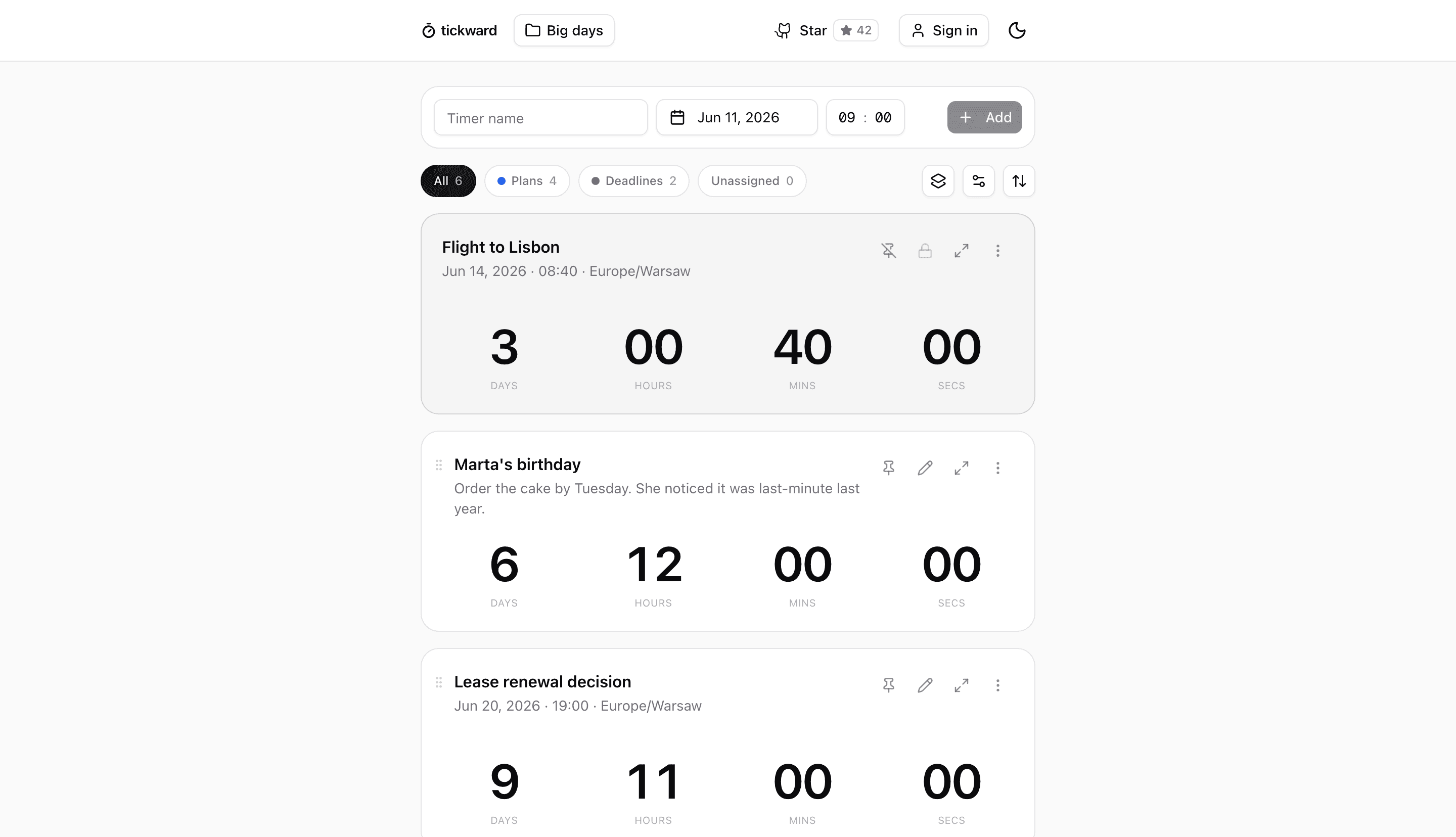
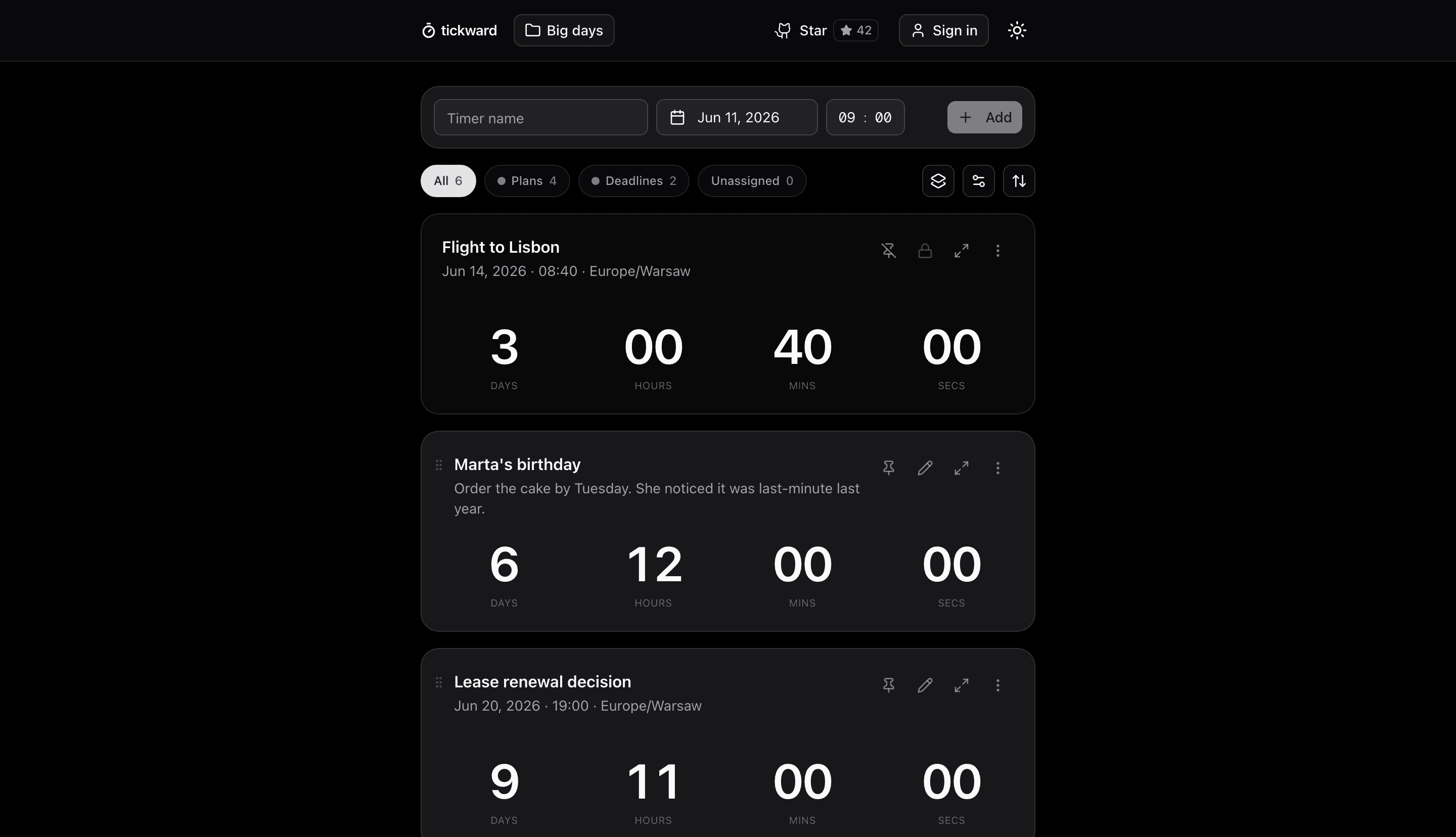
Add the event name, target date, target time, and timezone. tickward counts down to that exact moment.
Keep one timer on its own, or place several event dates inside a project or space when you manage a full calendar.
Send the public link to attendees, members, speakers, or volunteers so they can check the countdown.
Turn on notifications when you want a prompt as the countdown ends and the event work begins.
For events, tickward is free and open source, with unlimited timers for dates you manage.
Share any timer with a public link so attendees can view the countdown without changing your event setup.
Shared tickward timers include an iframe snippet for websites, which fits event pages and registration pages.
You can start with a browser-local timer and skip sign-in. Add an account later if the same event timer should sync across devices.
Each timer uses a target date, target time, and timezone so the countdown points to the actual event start.
Create your first countdown timer in seconds.
Add your first timer